The Max Console
Attribution: Content copied and adapted from Adam Murray’s “JS in Live” tutorials, licensed under CC BY-NC-SA 4.0. Original: https://adammurray.link/max-for-live/js-in-live/ — Changes may be present. Not endorsed by Adam Murray or Cycling ‘74. License: https://creativecommons.org/licenses/by-nc-sa/4.0/
[!TIP] A new version of this tutorial is available that uses the
v8JavaScript engine in Max 9 (Live 12.2+), which is far superior to the legacyjsobject used here.
This is a follow-up to the JavaScript in Live tutorial “Real Time MIDI Processing”. In this tutorial, start with another new Max MIDI Effect device, as explained in “Getting Started”.
To work with JavaScript in Live, we need to be able to understand what our code is doing. One of the best ways to do that is to send messages to the Max Console to check the state of variables and trace the execution of the script. As we saw in previous tutorials, we can use the built-in post() function to display messages in the Max Console. This tutorial shows how to use post() to display whatever data you want in an understandable way, which is not always straightforward.
To achieve this, we’ll wrap post() with a general purpose log() function for printing information in the Max Console. This is inspired by console.log() in web browsers and Node.js. We’ll use log() in future tutorials including the next tutorial, “The Live API”.
Finding the Max Console
There are a few ways to open it:
- Clicking the icon in the Max patch editor’s right sidebar (highlighted blue here):
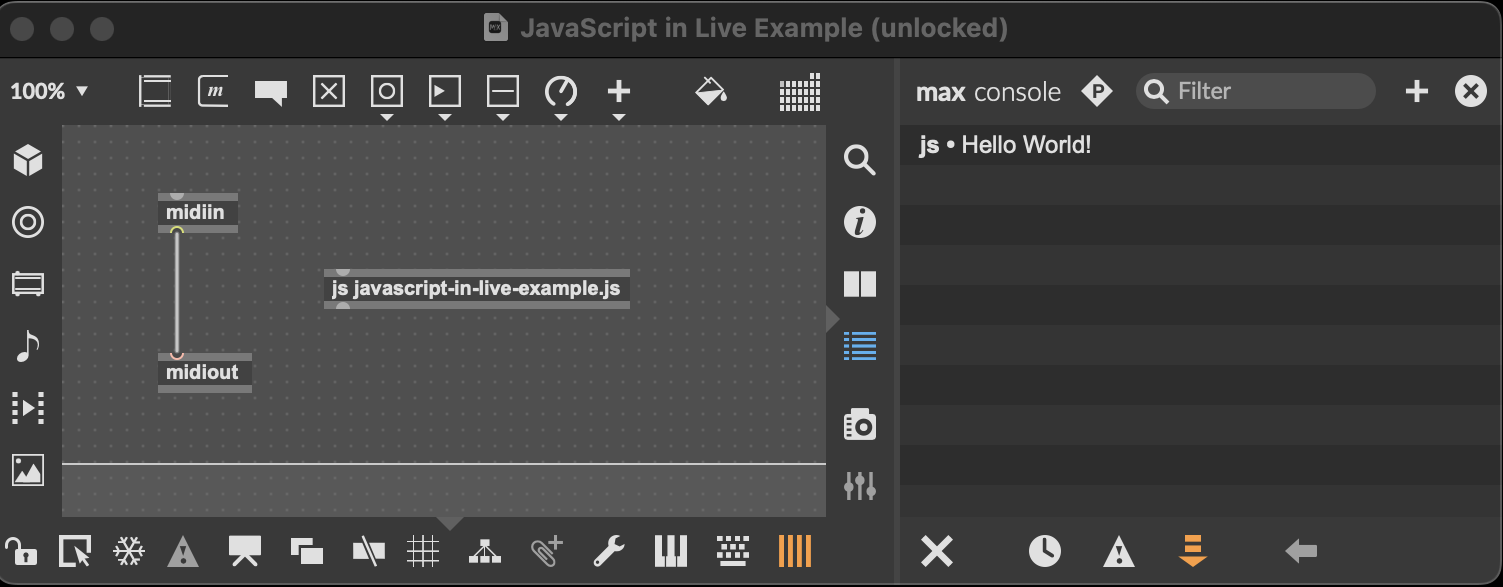
- Opening a dedicated window via the Max patch editor’s “Window” menu (note the keyboard shortcut: Command+Shift+M on macOS, Ctrl+Shift+M on Windows):

- Right-clicking the Max for Live device’s title bar in Live (where it’s called the “Max Window”):
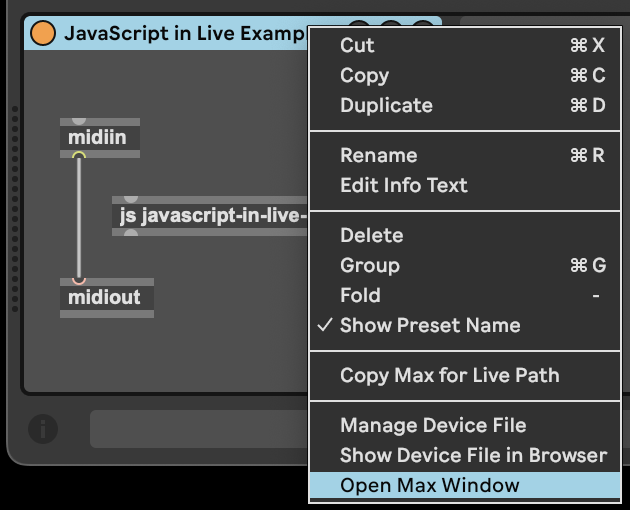
Note the “Max Window” opened from the device in Live is independent of the console opened from the Max patch editor. There are two different copies of your device: the one that runs in Live and the one you edit in Max. Each one has its own console.
When you’re actually using your device in Live, opening the “Max Window” from the device’s title bar is a good place to check for errors when something isn’t working. Otherwise, when actively editing the device, use the Max Console opened from the patch editor.
Console Features
The Max Console has useful features in its top and bottom toolbars. Most used:
- Clear all messages (clean run before saving changes)
- Search messages (confirm a log line executed)
- Show Object (highlight the object that printed a message) and double-click to jump to it
Try right-clicking a message for more features.
The Built-in post() Function
Like in “Getting Started”, run this JavaScript code using a js object in a Max device:
post("Hello");
You should see js • Hello in the Max Console.
Print multiple messages:
post("Hello");
post("Goodbye");
This shows on one line. Add explicit newlines:
post("Hello\n");
post("Goodbye\n");
Now you’ll see:
js • Hello
js • Goodbye
The first time may still appear on one line; run twice. Example:
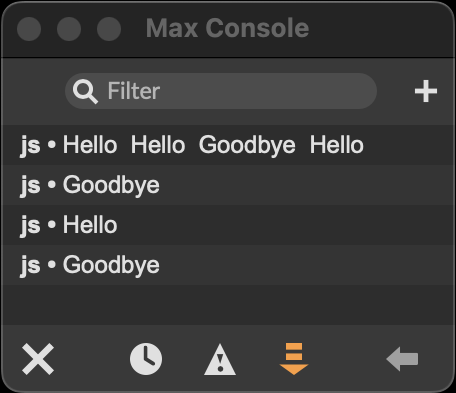
The js • prefix indicates the message came from a js object.
A Custom log() Function
Avoid typing "\n" every time by wrapping post():
function log(message) {
  post(message, "\n");
}

log("Hello");
log("Goodbye");
Test various inputs:
function log(message) {
  post(message, "\n");
}

log("Hello");
log(1);
log(3.14159);
log(true)
log(null);
log();
log([1, 2, 3]);
log({a: 'a', b: 'b'});
log([1,{a:{b:true}}]);
log(new Date());
Some outputs are unhelpful (e.g., jsobject, 3.14, 1).
Using String()
Convert values to strings first:
function log(message) {
  post(String(message), "\n");
}
Better, but objects show as [object Object].
Using JSON.stringify()
Try JSON for everything:
function log(message) {
  post(JSON.stringify(message), "\n");
}
This helps with arrays/objects, but some types (like LiveAPI info) aren’t readable.
The Best of Both Worlds
Combine approaches: use String() first; if it looks like an object ([object ...]), then JSON.stringify():
function log(message) {
  var s = String(message);
  if (s.indexOf("[object ") >= 0) {
    s = JSON.stringify(message);
  }
  post(s, "\n");
}
Example usage (including LiveAPI):
log("Hello");
log(1);
log(3.14159);
log(true)
log(null);
log();
log([1, 2, 3]);
log({a: 'a', b: 'b'});
log([1,{a:{b:true}}]);
log(new Date());
log(new LiveAPI('live_set').info);
Now LiveAPI info becomes readable across multiple lines.
Multiple arguments
Support variable arguments to avoid concatenation:
function log() {
  for (var i = 0; i < arguments.length; i++) {
    var message = arguments[i];
    var s = String(message);
    if (s.indexOf("[object ") >= 0) {
      s = JSON.stringify(message);
    }
    post(s);
  }
  post("\n");
}

log(1, 2, 3);
log();
log([1, 2, 3]);
Results:
1  2  3

1,2,3
A compact version:
function log() {
  for (var i = 0; i < arguments.length; i++) {
    var s = String(arguments[i]);
    post(s.indexOf("[object ") >= 0 ? JSON.stringify(arguments[i]) : s);
  }
  post("\n");
}
Reporting Errors
Max’s js object has an error() function similar to post() that prints with a reddish background. Create a warn() function:
function log() { /* same as above */ }

function warn() {
  for (var i = 0; i < arguments.length; i++) {
    var s = String(arguments[i]);
    error(s.indexOf("[object ") >= 0 ? JSON.stringify(arguments[i]) : s);
  }
  error("\n");
}

log("Everything is ok.");
warn("Something bad happened!");
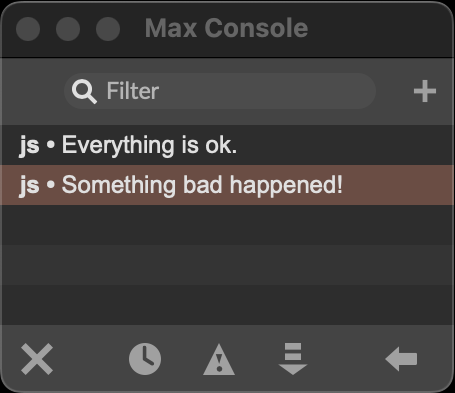
You can filter the console to only show errors. This is useful when debugging remotely—ask users to open the Max Window from the device title bar, filter errors, and report them.
Tip: Logging Script Changes
When debugging with lots of saves and logs, the console gets noisy. Add a divider and timestamp on reload:
function log() { /* same as above */ }
log("------------------------------------------------------------------")
log("Reloaded on", Date());
//---------------------------------------------------------------------
// "Real" code starts here...
Console sample:
... logs from previous script run ...
------------------------------------------------------------------
Reloaded on Sun Nov 03 2024 18:10:23 GMT-0800 (PST)
If you have multiple scripts, include a distinct name in the reload log.
Next Steps
Now that we’re able to print information from our JavaScript code, we can use this ability to learn the Live API in the next tutorial, “The Live API”.
Have feedback or questions? Email the developer: adam@adammurray.link (check spam for replies)